Traditional passwords are cumbersome to memorize and highly vulnerable to phishing and credential stuffing. To solve this, major tech giants have spearheaded Passkeys, enabling seamless, passwordless login using Face ID, fingerprints, or device PINs.
First-time adopters frequently wonder: "Where are my Passkeys actually stored?" and "Will I lose access if I change my phone or laptop?". Understanding these concepts requires demystifying the underlying storage models and how operating systems present them.
Technical Foundation: 2 Core Passkey Storage Types
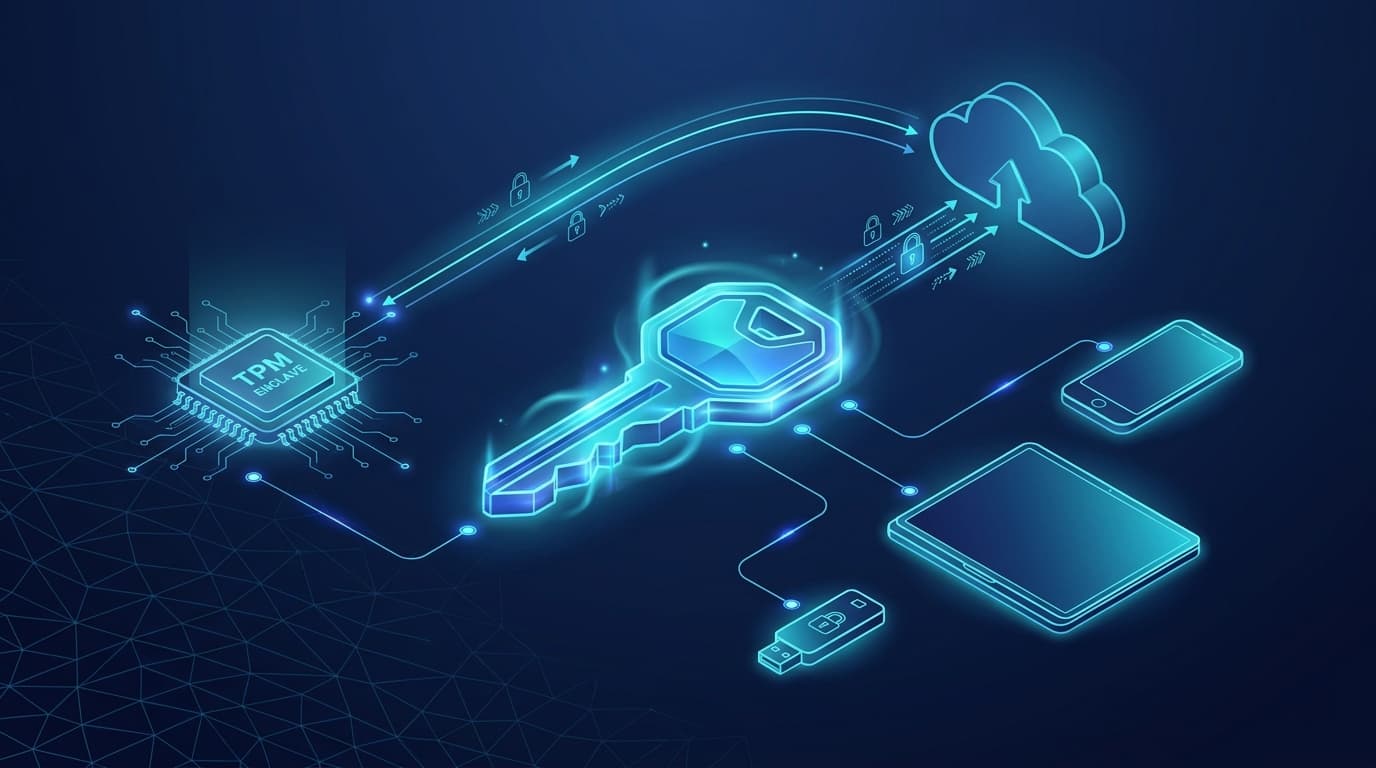
Passkeys rely on asymmetric cryptography. The server stores only the public key, while the critical private key is safely locked within your trusted authenticator or account. Based on cross-device synchronization capabilities, passkeys fall into two fundamental models:
Syncable Passkeys
Device-Bound Passkeys
Practical Operations: The 3 Device Options in System Prompts
When registering or signing in with a Passkey, your OS dialog (e.g., Windows Security) presents three practical choices:
1. This Windows device
Use Case: Quick verification directly on your current computer without reaching for your phone.
How it works: Stores keys locally in the PC TPM chip and unlocks via Windows Hello biometrics or PIN.
2. iPhone, iPad, or Android device
Use Case: Using your personal phone as the primary authentication hub, even on public/shared computers.
How it works: The screen displays a dynamic QR code; scanning it with your phone verifies local proximity and performs biometric sign-off.
3. Security key
Use Case: High-compliance organizational requirements or ultra-high asset security.
How it works: Insert a USB hardware token (like YubiKey) or tap via NFC. The key is device-bound and unextractable.
Architecture Mapping: 2 Core Models ➔ 3 Intuitive Prompts
While the cryptographic foundation divides strictly into Syncable vs. Device-Bound keys, operating system prompts thoughtfully surface them as 3 user-friendly options (PC, Phone, Hardware Key) for intuitive, frictionless interaction.
Frequently Asked Questions (FAQ)
Q1: Will I lose my Passkeys if I switch phones or reinstall my PC?
If you use Syncable Passkeys (like Apple iCloud Keychain, Google Password Manager, or 1Password), your keys automatically sync to your new device once you sign into your cloud account. If you use Device-Bound Passkeys (like PC TPM or physical YubiKeys), the private key resides exclusively on that chip; you should register a backup key or secondary device in your account settings.
Q2: If my phone is lost or stolen, can someone log into my accounts?
No. Passkeys strictly require local biometric authentication (Face ID, Touch ID, fingerprint) or device PIN. Without your biometrics or screen lock code, the private key remains cryptographically locked. You can also remotely revoke device access via your cloud account.
Q3: Why does scanning a QR code with my phone allow secure login on my PC?
This leverages the FIDO Hybrid transport protocol. The PC generates a short-lived QR code, and scanning it establishes a local Bluetooth connection to verify physical proximity, preventing remote phishing or cross-continent interception.
Related Articles & Technical Insights
Curated fintech, regulatory guides, and industry insights
The Relationship Between eKYC and Passkey: Who You Are vs. Are You Really You
In-depth analysis of the relationship between eKYC and Passkey. Understand how identity verification and passwordless authentication collaborate to build end-to-end digital identity security.
Understanding the All-New Passkey User Experience
Say goodbye to complex passwords and SMS OTPs! Explore the 4 frictionless scenarios and security principles of Passkeys from sign-up to cross-device login.
Farewell to Passwords: What is a Passkey? A Complete Guide to Safer Login
Learn how FIDO2 / WebAuthn standards and biometric authentication create passwordless, anti-phishing login experiences.